Muttmates, and how it works

Who's at the park? Post when you are heading down, see who else is going, and let your dog build a list of mates it actually gets on with. Every screen below is the real app, following one owner, Alex, and his dog Jimbo through a morning at the park.

1. Getting started

Muttmates runs in the browser. There is nothing to install from an app store.

The Muttmates welcome screen with a Get started button and a Sign in link
The welcome screen

Open the site on your phone and you land here. Two ways in:

  • Get started if this is your first time. It walks you through an account, your dog, and your park in about a minute.
  • Sign in if you have been here before. Everything comes back exactly as you left it.

Not sure yet? You do not have to commit to anything to see what is going on at a park.

2. Have a look around first

A park feed viewed without an account, showing today's plans and a sign in to join prompt
A park, no account needed

Any park page works without an account. If a mate texts you a Muttmates link, or you find a park through search, you can open it and read what is on there today: who is live at the park right now, and the plans people have posted.

The only things behind the sign-in are the things that need to know who you are, like posting a plan, saying you are coming to one, and joining a pack.

So the honest way to try Muttmates is to look up your own park first and see whether your regulars are already on it.

3. Making an account

The create account screen with email and password fields
An email and a password. That is the lot.

Tap Get started and this is the whole form.

  • A password needs at least eight characters. Tap Show if you want to check what you typed.
  • You stay signed in until you actually sign out. Rebooting the phone does not log you out.
  • No confirmation email hoop to jump through. You type it, you are in, and the app takes you straight to adding your dog.
Your email is for signing you in and the odd park ping. Nothing else, and never to anyone else.

4. Signing in, three ways

The sign in screen with email and password fields, an email me a link option, and a forgot password link
The usual way
The email me a link screen, which sends a one-tap sign in link
No password at all
The forgot password screen asking for an email to send a reset link to
Forgot it
The choose a new password screen reached from a reset link
Picking a new one

Coming back later, you have three ways in, and none of them involve remembering anything you do not want to.

Email and password

The usual. Type both, tap the button, done.

Email me a link instead

Don't want a password at all? Tap Email me a link instead. We send a link, you tap it on this phone, and you are in. The link works once and lasts fifteen minutes.

Forgot your password

Tap Forgot your password, give it your email, and a reset link arrives. It works once and lasts an hour. The link opens the screen on the left where you pick a new password, and every other device gets signed out at the same time, in case the reason you are resetting is that a phone went missing.

5. Adding your dog

Add your dog: photo, name, size chips, age chips, and your first name, filled in for Jimbo and Alex
Step one of three

Three short steps, and the dots up the top show you where you are. Here Alex is signing Jimbo up.

PhotoOptional. Tap the circle to pick one from your phone. You can add it later from the profile.
NameThe only thing that is required.
SizeSmall, medium or large. Other owners see this before they turn up, which is the whole point.
AgePuppy, adult or senior.
Your first nameSo people at the park know who to say hello to.

Got more than one dog? The app carries as many as you like. A row of name chips appears at the top of your profile and you tap whichever one you are out with, and that is the dog that goes on your plans.

6. How your dog plays

Play style chips with ball obsessed and chaser selected
Pick up to three

Pick up to three from ball obsessed, chaser, sniffer, gentle, rough and tumble, shy at first, good with puppies, and good with small dogs. Jimbo is ball obsessed and a chaser, so that is what other owners will read.

Three is the cap on purpose. A dog described eight ways is described no ways, and this line is what another owner reads when they are deciding whether to bring theirs down.

You can change it any time from the profile screen.

7. Picking your home park

Park search showing Ashgrove results with a Find the closest to me button
Search, or let the phone find it

Type a suburb or a park name, or tap Find the closest to me and the phone will sort it out.

Your home park is the one you hear about by default. You can follow more later, and you can change which one is home whenever you like.

Park data comes from OpenStreetMap contributors, under the Open Database Licence. It is loaded once and stored with the app, so there is no map to download and nothing is sent to a mapping service while you use it.

8. The park feed

Park feed with a live now card showing four dogs, and a What do you want to do grid of six tiles
Home. Who is there, who is going.
The which park sheet listing the parks you follow, with home marked
Tap the park name to switch

This is the screen you will actually use. Top to bottom:

  • The park name, with the current temperature next to it. Tap the name and the sheet on the left slides up, listing every park you follow, so you can flick between them.
  • Live now, the dark green card, when someone is down there right now. It shows each dog, its size and how it plays. Tap it to say you are coming.
  • What do you want to do?, a grid of six tiles that lays out everything the app does: post a park plan, parks and beaches, the road trip planner, packs and walking groups, mates, and dog sitters. Each tile says in a line what it is for, so you never have to guess what lives behind a tab.
  • Today's plans, grouped under the time they start rather than repeating the time on every row. Jimbo's own plan is marked Yours.
  • Going too on any plan puts your dog on the list in one tap. It flips to You're in.

The bar along the bottom is Home, Places, the post button, Packs and Profile.

9. Posting a plan

The post a plan sheet with park, when, duration, audience and a note field
The big button in the middle of the bar
The pick a park first sheet shown when you try to post before following any park
No park yet? It sends you to find one

Tap the round button in the centre of the tab bar and this slides up.

ParkDefaults to the one you are looking at.
WhenNow, or one of the next few round times, or Pick a time for anything else.
For about30 minutes, 45 minutes or an hour. It is a rough guide, not a commitment.
Post toEveryone at the park, one of your packs, or mates only.
Anything to addOptional. Things like "bringing the chuck-it, far gate".

If other dogs are already heading down around that time, the app tells you before you post, so you can just join theirs instead.

And if you tap post before you follow any park at all, the app does not argue, it just offers to find you one. That is the second screen.

Posting shares the plan, never your location. Nobody sees where you are, only which park you said you would be at and when.

10. A plan, and its chat

Plan detail with the going list of four dogs, a call it off button, and the plan chat
Everything about one park run

Tap any plan to open it. You get the park, the time, how long, and who it is visible to. This one is Jimbo's afternoon plan, and three dogs have already joined.

  • Going lists every dog with its size, how it plays, and its owner's first name. Tap a dog to see its profile.
  • The green button says you are coming. If it is your plan, you get Call it off instead, and everyone going is told.
  • Plan chat appears once you are in. It is logistics only, "we're at the far gate" sort of thing, and it disappears a day after the plan.

11. After the park run

A finished plan with a how did it go card asking about Pepper, with great mates, fine and not a fit buttons
Three answers, ten seconds

Jimbo did a quick morning lap before work, and now the plan is over a card sits on it asking how it went with each dog he met. Three answers:

  • Great mates. If the other owner says the same about your dog, they become mates, and you will hear when they are heading down.
  • Fine. No harm done, nothing recorded beyond that.
  • Not a fit. Some dogs just don't mix. This quietly keeps the two of you off each other's radar.

This is where the mates list actually comes from. There are no friend requests anywhere in the app. Two owners walk home, both say it went great, and their dogs are mates.

Only you ever see what you picked. Not a fit is never shown to the other owner, and neither is anything else you answer here.

12. Places: parks, beaches and spots

The Places screen with a search box, use my location chip, and your places list showing a home park and a meeting spot
Your places, and the search
A postcode search showing a map of parks within 50 km, radius chips, and the closest results with distances
A postcode search, on the map
A postcode search with the Caravan parks and camping chip on, showing stays on a map and a list where one card wears a rest area badge and another a free camp badge
Free camp and rest area badges on a stays search

The Places tab is dog parks, dog beaches, and any other place where dogs can meet and greet, closest first. That is 1,070 off-leash parks and 59 beaches around the country, plus any meeting spots your groups have made.

It is also where the travelling crew finds a bed. The Caravan parks & camping chip adds dog-friendly places to stay: the caravan parks, plus about 640 free camps and 2,650 highway rest areas across every state. Each one wears its own Free camp or Rest area badge in the list, so you can tell a free overnight from a paid park, and a park from a toilet stop, before you tap. We have kept national park campgrounds out on purpose, because dogs are banned in national parks.

  • Search by suburb, park name or postcode, or tap Use my location for the closest ones, with distances.
  • A search drops the results on a map, with 50 km, 100 km and 200 km chips to widen the net. Handy before a holiday: search the postcode you are heading to and see what is around.
  • Your places sits at the top, with your home park marked. Beaches and meeting spots carry a small tag so you can tell them apart. Remove stops following one.
  • On any result you can follow it, or make it your home park.
  • Set this as my home saves a home location so the app can still show you the closest parks on days you do not want to share live location.

Following a place means its plans turn up in your feed and you can be pinged about it. Beaches work like parks: 20 of the 51 are true off-leash, and the rest tell you that leads and hours vary, because on most beaches they do.

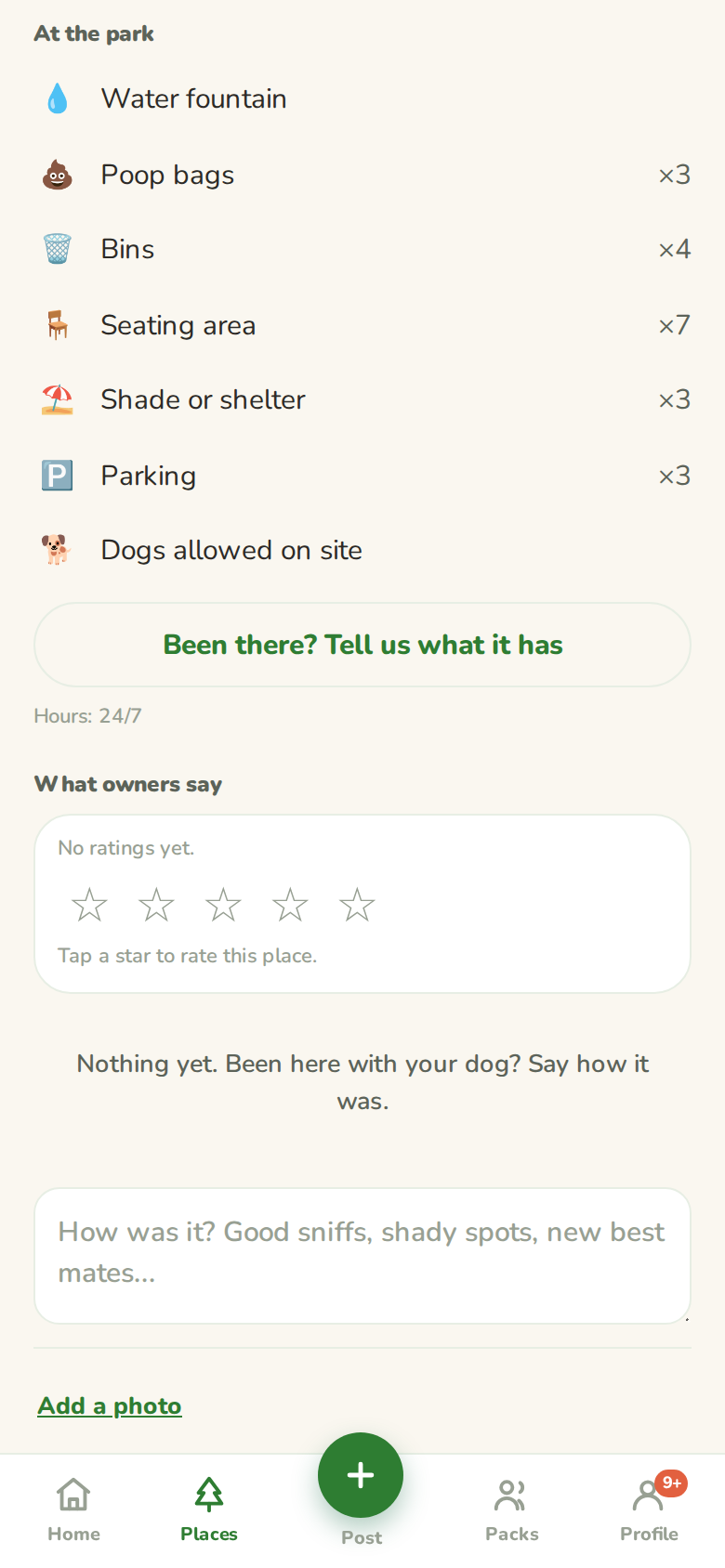
13. What a park has

A park info page with off leash and fenced tags, the weather, a map, get directions, and an at the park list showing parking, drinking water, dog bag dispensers and bins
The things you check before you drive

Every park has an info page. Tap the park name on its feed, or the arrow on any search result, and you get the full picture before you get in the car.

  • The basics: off leash, fenced or not, which council looks after it, the weather right now, and how many dogs call it home.
  • A map of exactly where it is. No more circling the suburb looking for the gate.
  • Get directions opens the spot straight in your phone's maps app, ready to navigate.
  • At the park lists the facilities: parking, drinking water, dog bag dispensers, bins, toilets, seating, shelter, and whether it is lit at night. Counts included, so ×3 parking means three car parks nearby.

The facilities come from OpenStreetMap, the same community-maintained data as the parks themselves.

14. Sharing a park

The share sheet for a park with email it, text it and copy the link buttons
Getting the regulars on

Share this park on the info page opens this sheet, and it is how a park actually gets going. Muttmates only works when the regulars at your park know about it, so the share button is doing the heavy lifting.

  • Email it or Text it opens a message with the park link already written.
  • Copy the link for pasting into the local Facebook group or the street WhatsApp.

The link opens the park's live feed, and as covered back in section 2, whoever taps it can read the park without an account. They only sign up once they can see it is worth it.

15. Fixing what's missing

The what does this park have sheet with facility chips, toilets and lit at night ticked, a details box and a send it in button
Been there? Tell us what it has.

Map data is only as good as the people who update it, and plenty of parks have a toilet block or a tap that never made it onto the map. So the info page has a button for the people who would know: Been there? Tell us what it has.

  • Tick the chips for what you saw at the park. Here Alex is adding toilets and night lighting.
  • The text box takes anything that does not fit a chip, like where exactly the tap is.
  • Send it in, and that is the whole job.

Suggestions are checked before they go live, so the facilities list stays something you can trust when you are deciding whether to drive twenty minutes.

16. Packs and walking groups

The packs screen listing Jimbo's pack and his walking group with its tag, a start a pack button, and a got a code field
Private groups with their own plans
The start a pack sheet with what is it chips for a pack or a walking group, a name field, an optional meeting place, and join settings
Starting one
A join code typed into the got a code field, with a preview sheet for the Wednesday walkers pack and a join button
Joining with a code

A pack is a private group, for your Wednesday regulars or the small-dog crew. Only members can see it and its plans. Alex runs one called Ashgrove early birds.

Starting one

Tap Start a pack, say what it is, name it, optionally pin it to a place, and choose whether anyone with the code can join or you approve each one.

The What is it chips at the top let you call it a pack or a walking group. It is the same thing underneath, the label just says what you do, and walking routes are coming for the groups that want them. The Meets at row lists your places, and if your group meets somewhere that is not a park at all, + New meeting spot makes one on the spot. More on that in section 18.

Joining one

Type the code the admin gave you and tap Look up. Codes get passed around in a group chat, a text, or at the park itself. The look-up shows you what you are joining first, the pack's name, how many dogs, and which park it meets at, so a mistyped code never lands you somewhere strange. Then Join with your dog, and depending on how the pack is set up you are either straight in or you wait for an admin to wave you through.

17. Inside a pack

A pack screen on the Plans tab showing one pack-only plan and a post button
Plans
The Members tab showing the join code with share and new code buttons, the member list with admin marked and remove links, and a leave button
Members, as the admin sees it

A pack has two tabs.

Plans

Plans posted to this pack only, with who is going. The round button in the bottom corner posts a new one straight to the pack, so you do not have to pick the audience yourself. Nobody outside the pack sees it.

Members

  • The join code sits at the top, and only admins see it. Share it sends it through your phone's usual share sheet, and New code kills the old one if it has been passed around too far.
  • In the pack lists every dog with its size and its owner's first name. Admins are marked.
  • Admins get a Remove next to each member, and approve anyone waiting to join.
  • Leave at the bottom takes you out at any time. If the last admin leaves, the pack goes with them.

18. Meeting spots

The start a pack sheet set to a walking group called Sunday striders, with a new meeting spot being named
Starting a walking group at a new spot
A meeting spot page with meeting spot and private members only tags, a map, get directions, and a make it public button
The spot's own page, private by default

Not every group meets at a listed dog park. Some meet at the back corner of an oval, a car park by the trail head, or a patch of grass that has never had a name. A meeting spot gives that place a page of its own.

Making one

While starting a pack or a walking group, tap + New meeting spot, name it, and the app pins it where you are standing. So make one when you are actually there, and the pin lands exactly where the group meets. Here Alex is starting the Sunday striders at a spot called Oval gate, top car park.

Who can see it

A new spot is private: only you and the members of packs that meet there can see it exists. Anyone else gets nothing, not even a hint it is there. If the spot turns out to be worth sharing, the Make it public for all to see button on its page opens it up to everyone, and that is the creator's call alone.

Once it exists, a spot works like any other place. It shows up under Your places with a spot tag, you can post plans at it, get directions to it, and share it, though a private spot's link only works for people who can already see it.

19. Your dog's profile

Jimbo's profile with mates, park visits and week streak counters, play style chips, a best mates row and home parks
What the app has been keeping track of
The edit profile sheet for Jimbo with photo, name, size, age and play styles
Everything is changeable

Three counters across the top: mates, park visits, and the week streak, meaning how many weeks in a row you have been down there. Jimbo has one mate already, Pepper, from this morning's lap.

  • Badges come from actually turning up: First mate, Regular, Pack of five, Early bird, Rain or shine, Welcome wagon and Pack leader.
  • Best mates is the list of dogs where you both said it went great.
  • Home parks shows what this dog follows, with home marked, and Add a park jumps to the search.
  • Edit profile opens the second screen and changes the photo, name, size, age or play styles.
  • Add another dog does what it says, and a chip row appears up top to switch between them.

20. Other people's dogs

Pepper's profile as another owner sees it, with size, age, play styles and shared history
Pepper, as Alex sees her
The report or block sheet with block and report options and an explanation that blocking is silent
The quiet exit

Tap any dog anywhere, on a plan's going list, in a pack, in your mates list, and you get its public profile: photo, name, size, age, play styles, badges, and the owner's first name. That is the complete list of what another owner can learn about you.

Down the bottom sits Report or block, and it is deliberately undramatic.

  • Block hides the two of you from each other everywhere: feeds, plans, profiles. The other owner is never told, things just quietly stop overlapping.
  • Report flags the profile to us with a short reason, for the rare thing that is actually a problem rather than a personality clash.

Anyone you block is listed in settings with an unblock button, in case a bad first meeting turns out to be just that.

21. Pings and mates

The what's on screen with Jimbo's mates list showing Pepper, played a few hours ago
What's on

Everything the app wanted to tell you, newest first. Someone posted at your park, a mate is heading down, a pack plan went up, someone joined yours.

  • Unread ones are highlighted. Tap one to jump straight to the plan.
  • Mark all read clears the lot.
  • Underneath sits your dog's mates, with how long ago they last played together. Pepper is on Jimbo's list now, a few hours after that morning lap.

Mates are earned, not added. There are no friend requests. You both come back from the park and say it went great, and that is it.

22. Settings

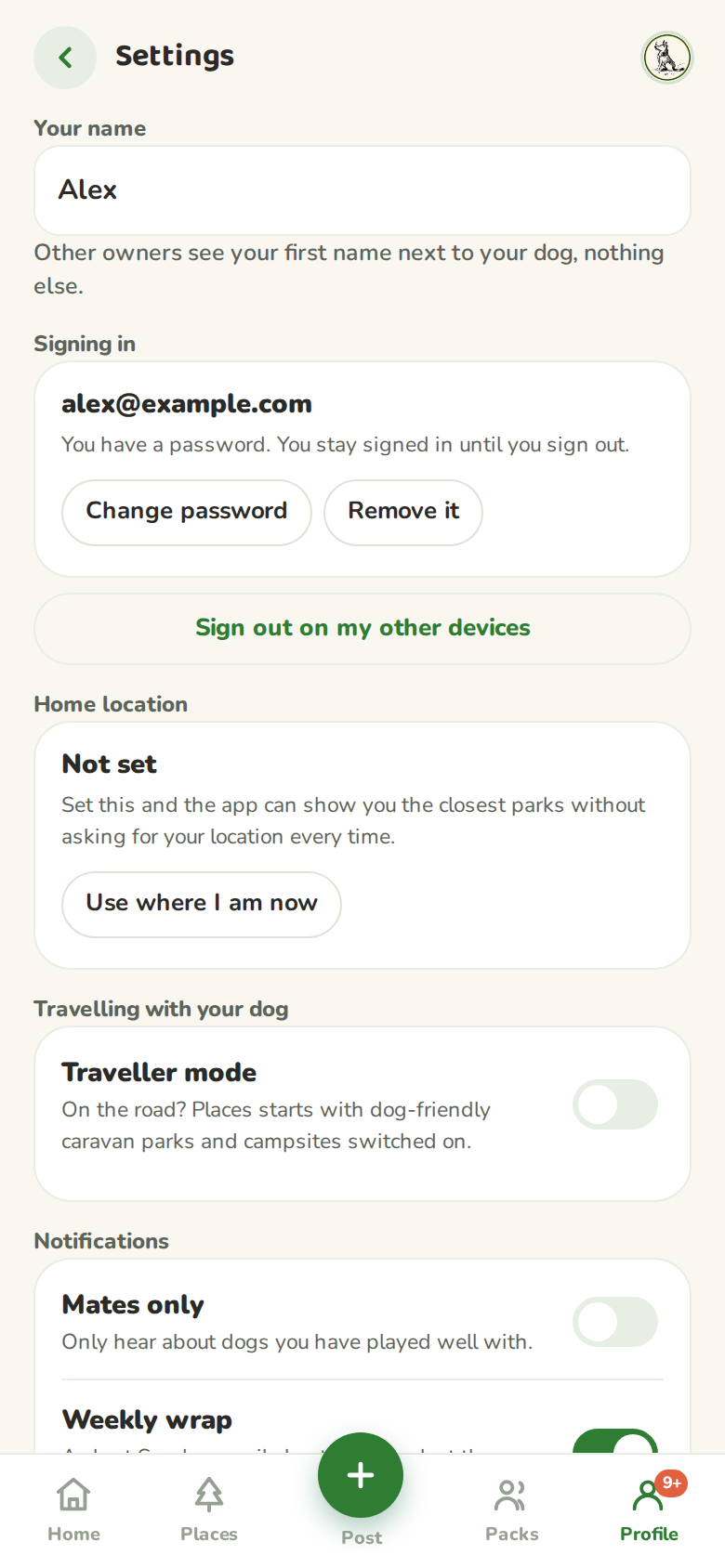
Settings screen with name, email, signing in, home location, notification toggles, quiet hours, push, parks and account controls
All the knobs, in one place
The change your password sheet with current and new password fields
Changing your password
The delete your account sheet spelling out exactly what gets removed, with a confirmation button
The way out, clearly marked
Your nameThe first name other owners see next to your dog.
Signing inChange password opens the middle sheet: current password, new password, done. Changing it signs out every other device.
Home locationSaved as a rough spot near your closest park's suburb, so you see a suburb name and not a pair of decimals. Remove it deletes it.
NotificationsMates only, the weekly wrap, and whether to email you if a push fails to land.
Quiet hoursA window where nothing buzzes. Alex has his set from 23:00 to 05:00.
Push on this deviceTurn phone notifications on for this phone specifically.
Your parksPer park, choose all plans, mates only, or nothing. Make any of them home, or remove it.
BlockedAnyone you blocked, and an unblock button.
AccountSign out, or delete your account. The delete sheet on the right spells out exactly what goes with it, your dogs, plans, mates and messages, before you confirm. No exit surveys, no seven-day cooling off, no emails asking you back.

23. Putting it on your home screen

Muttmates is a web app, so it goes on your home screen straight from the browser. No store, no download, no updates to install.

iPhone and iPad

Android

Once it is on the home screen it opens full screen with no browser bar, and it can send you push notifications.

24. What other people can see

Short version: your dog and your first name. That is all.

Other owners seeYour dog's photo, name, size, age, play styles and badges, plus your first name.
They never seeYour surname, your email address, your home location, or where you are right now.
Posting a planShares the park and the time. It does not share your location, then or later.
LocationOnly used when you tap a button that asks for it, to sort parks by distance. It is not tracked in the background.
After-play answersPrivate to you, always. The other owner is never told what you picked.
BlockingSilent. You disappear from each other and nobody is notified.
Plan chatDeleted a day after the plan it belongs to.
PacksInvisible to anyone who is not a member, including the plans posted to them. Walking groups are packs, so the same applies.
Meeting spotsPrivate to the creator and the members of packs that meet there, until the creator makes one public. Outsiders cannot see a private spot exists.
Facility suggestionsReviewed by us, published without your name.
Deleting your accountTakes your dogs, plans, mates and messages with it.

25. Offline maps for the road

Travelling with the dog often means no signal exactly when you need the map most. Muttmates now works around that.

Settings with Traveller mode turned on
Traveller mode in Settings
A postcode search on Places with a Save this area for offline button
Saving an area for offline use
  • Turn on Traveller mode in Settings, then search a postcode on Places and tap Save this area for offline. Muttmates downloads the map for about 50 km around that spot, so it still works at the caravan park or out of range. A download can be cancelled partway through.
  • Saved maps are kept under a fixed size on your phone, and Settings, under Saved areas, shows exactly how much space they are using. Clear saved maps wipes them in one tap if you want the space back. Maps for parks you follow come back automatically as you use the app.
  • If our map server has a bad moment, you will not be left looking at a blank grey box. You will still see the park's name, its suburb, and a Get directions button that opens your phone's own map app straight away.

26. Know before you go: dog policies

Caravan parks and kennels used to show the same plain marker whether a place had confirmed dogs are welcome, confirmed they are not, or nobody had ever asked. Not any more.

A stays list with Dogs OK, Dogs OK members and Ring ahead badges
Dog policy badges on a stays list
A kennel page showing its confirmed dog policy detail
Policy detail on a kennel page
A free camp page with a sheet asking Did they let Jimbo stay, with Yes, No and Conditions buttons
The one-tap ask after a booking click

Every stay and kennel in the list now carries one of three badges:

  • Dogs OK. The operator has confirmed it, and we show where that came from and when.
  • Dogs OK · members. No operator confirmation yet, but members who actually stayed there said yes, with a running count so you can see how many.
  • Ring ahead. Nobody has confirmed either way. We show the phone number right there in the list when we have one, so checking takes one call, not a search.

Results are sorted so confirmed places come first within roughly the same distance, member-confirmed next, and unconfirmed places last, without burying a park three streets away behind one an hour further on. A new filter, Only show places that take dogs, sits right above the list whenever you are browsing stays or kennels.

Behind the badges, "dog policy" now covers more than a simple yes or no. Where we know a park only allows dogs on powered sites, caps it at two dogs, or blocks them over the Christmas and Easter break, the park page shows that detail plainly instead of flattening it into a single tick.

And after a stay at a place we did not have confirmed, Muttmates asks the simple question the morning after: "Did they let [your dog] stay?" One tap of Yes or No, and an optional condition or two, updates the badge for the next traveller.

The same question now follows a booking click. If Alex is signed in and taps through to a caravan park's booking page, or a free camp's details, and the dog policy there is not confirmed, Muttmates checks back a few days later: did they let Jimbo stay? One tap answers it, with an optional note like "powered sites only". It only ever comes once per place, never for somewhere already confirmed, and it keeps to your quiet hours like every other ping.

27. Need a sitter?

Sometimes you just need someone to keep an eye on your dog for a couple of hours, a shop run, a swim, a look around town without the dog in tow. Or maybe you are happy to be that someone for another traveller.

Posting a sitter request with a start time, duration and audience choice
Posting a sitter request
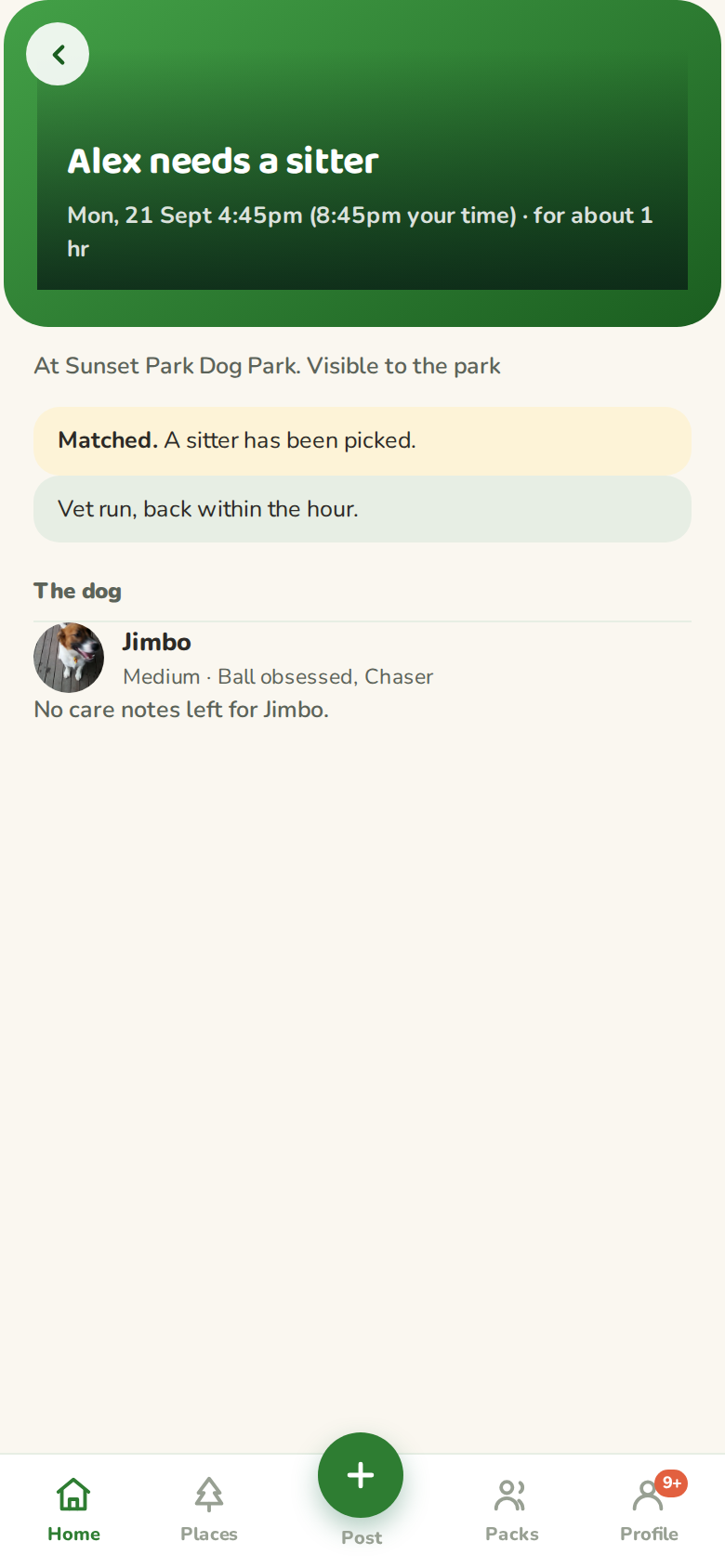
A sitter post marked matched after a reply was accepted
A matched sitter post
  • Post a request or an offer with a start time and how long you will need, and choose who sees it: your pack, everyone at this park, or both at once.
  • Replies come in with a note from each person, and you pick one to accept. Once you do, that is your sitter, everyone else's offer closes automatically, and the post is marked matched.
  • It stays inside the same trust you already built by joining a pack or following a park. Nobody sees a request unless they are one of the people you actually opened it up to.

28. Vets: nearly 1,000 clinics, right in the app

If your dog needs a vet, Muttmates now finds one without you leaving the app.

The Places filter chips with Vets selected, showing a list of vet clinics
The Vets filter on Places
  • At a park, a caravan spot, a beach or a kennel, Muttmates shows the three nearest clinics right there on the page: name, how far away, opening hours where we have them, and a phone number you can tap to call.
  • Every vet clinic gets its own page too, with contact details, a map and directions, the same as any place on Muttmates. 986 clinics around the country are in there already, and most now have a phone number (885) and a website (875) filled in.
  • Tap Vets on the Places filter chips and the list narrows to vet clinics only, same as Parks, Beaches, Caravan parks and Kennels already do. On the map, vets get their own red cross icon so they no longer look like just another green tree.
  • Know a clinic we do not have? Add a place on Places now takes vet clinics too, phone number included. We check it before it goes live, same as everything else you send us.

29. Times that make sense wherever you are

Australia has five time zones and Brisbane and Sydney split by an hour for half the year. That used to mean a plan time or a reminder was worked out from wherever the app happened to be running, not from where the plan actually was. Not any more.

A plan showing the park's own time with the viewer's time underneath in brackets
A plan time shown in both time zones
  • A plan now shows the time at the park it is at. Checking from somewhere else, you will see that place's time first, with your own time underneath in brackets. A 7:00am plan at a Dayboro park still reads 7:00am standing there, and 7:00am (5:00am your time) if your phone is set to Perth.
  • Reminders and "someone's heading down" pushes work the same way, telling you the time at the park, not the time on the sender's phone. Quick-time buttons when posting a plan offer the next few round half hours at that park.
  • Quiet hours is the one thing that still goes by your own phone, on purpose. A plan happens at a place, but a good night's sleep happens to you, wherever you are.

30. What's new, right on the home screen

The home screen's What's new list of recent catalogue changes, with the day's plans below it
What's new on the home screen

The home screen now tells you what has changed, not just what is coming up. A What's new list sits between the tile grid and your plans, showing the last five things that happened anywhere in the catalogue this week, a new stay or camping area going in, or a park getting its dog policy confirmed one way or the other. Tap any of them and you are straight on that park's page. Nothing older than a week, so it never turns into a scroll.

Best mates on the Profile tab now shows how many new notifications are waiting right there next to the mate count, so the number on the tab and the number on the screen finally agree.

31. Sharing made easy

A plan's Share to the group button with the pre-written post about to go to the phone's share sheet
Sharing a plan to the group
  • Open a plan and tap Share to the group. Muttmates writes the post for you, who is going, where, and when, with a link straight to the park, then hands it to your phone's own share sheet for Facebook, Messenger or a group chat. No share sheet on your phone or browser? It copies to your clipboard instead, ready to paste.
  • Paste a park link into Facebook, Messenger or WhatsApp and you now get a proper card, not a bare blue link: the park's name and what is happening there right now, dogs there this minute if there are any, or the next plan if there are not.

32. The park wall: photos and tidier moderation

A park wall comment with a photo attached, and a pack admin remove option on another post
A wall comment with a photo
  • Comments on a park page can now carry one photo, so "watch the gate latch, it sticks" comes with a picture of the gate, not just the words. Tap Add a photo under the comment box before you post.
  • The admins of any pack pinned to that park can now remove a post that should not be there, not just their own. A post that is not yours shows Remove (pack admin) instead of Remove, so it is clear when a post comes down by admin call rather than the poster's own choice.

33. Kennel and sitter pages that answer the actual question

Nobody is organising a playdate at a boarding kennel, so its page no longer pretends otherwise.

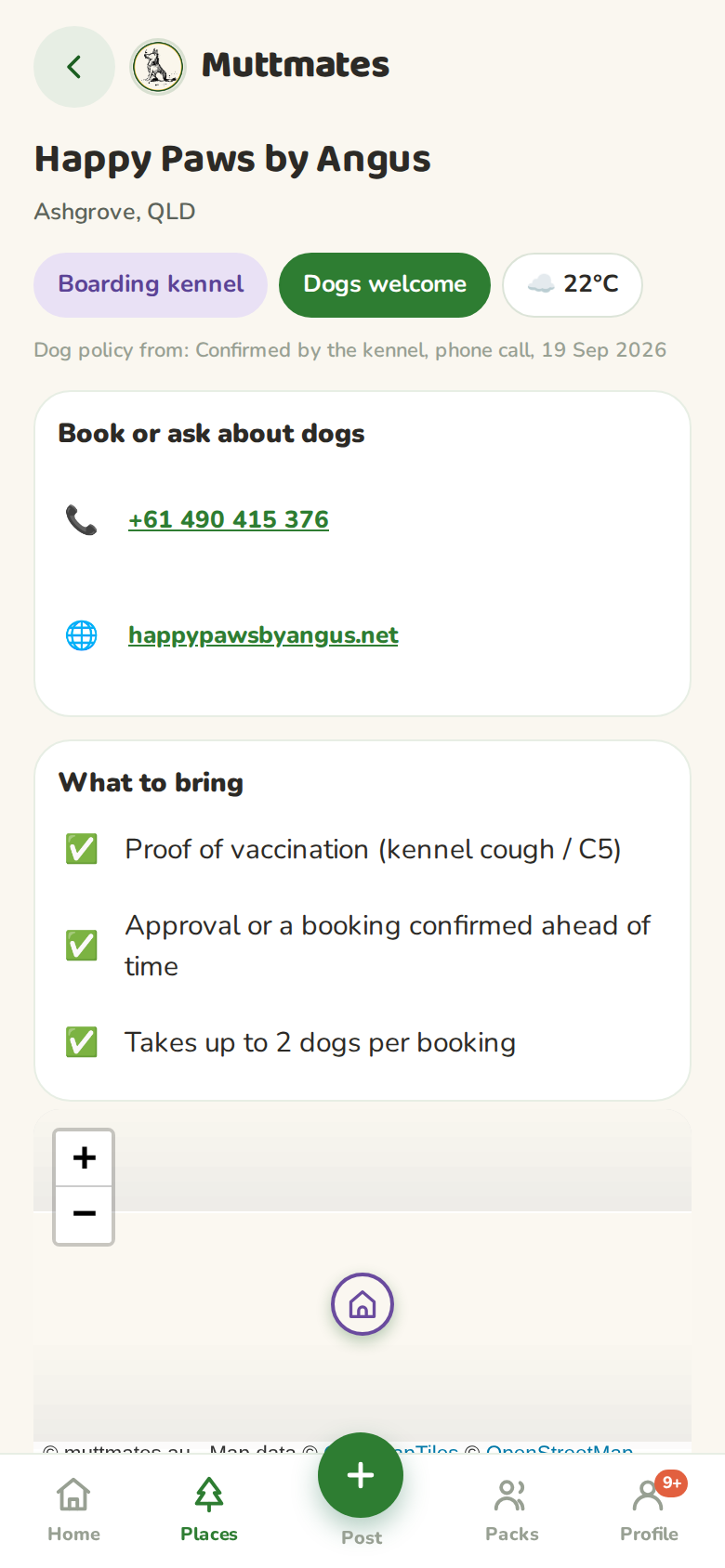
A kennel page with the phone number, hours and a What to bring card
A kennel page, phone number first

Open a kennel or sitter now and the phone number is the first thing on the page, tap it and you are calling. Hours are right there too, and if we know what they ask you to bring, a What to bring card tells you straight up, a vaccination certificate, whether you need to book ahead, how many dogs they will take at once. Ratings and comments from owners who have actually used the place are still there. The playdate buttons are gone, because they never belonged on this page.

34. Planning a road trip with the dog

Say where you are starting, where you are headed, and anywhere in between, and we build a stop list along the actual road, not just anywhere near the postcode.

The road trip planner with empty start and destination fields and an add a stop button
Start, finish, and up to six stops between
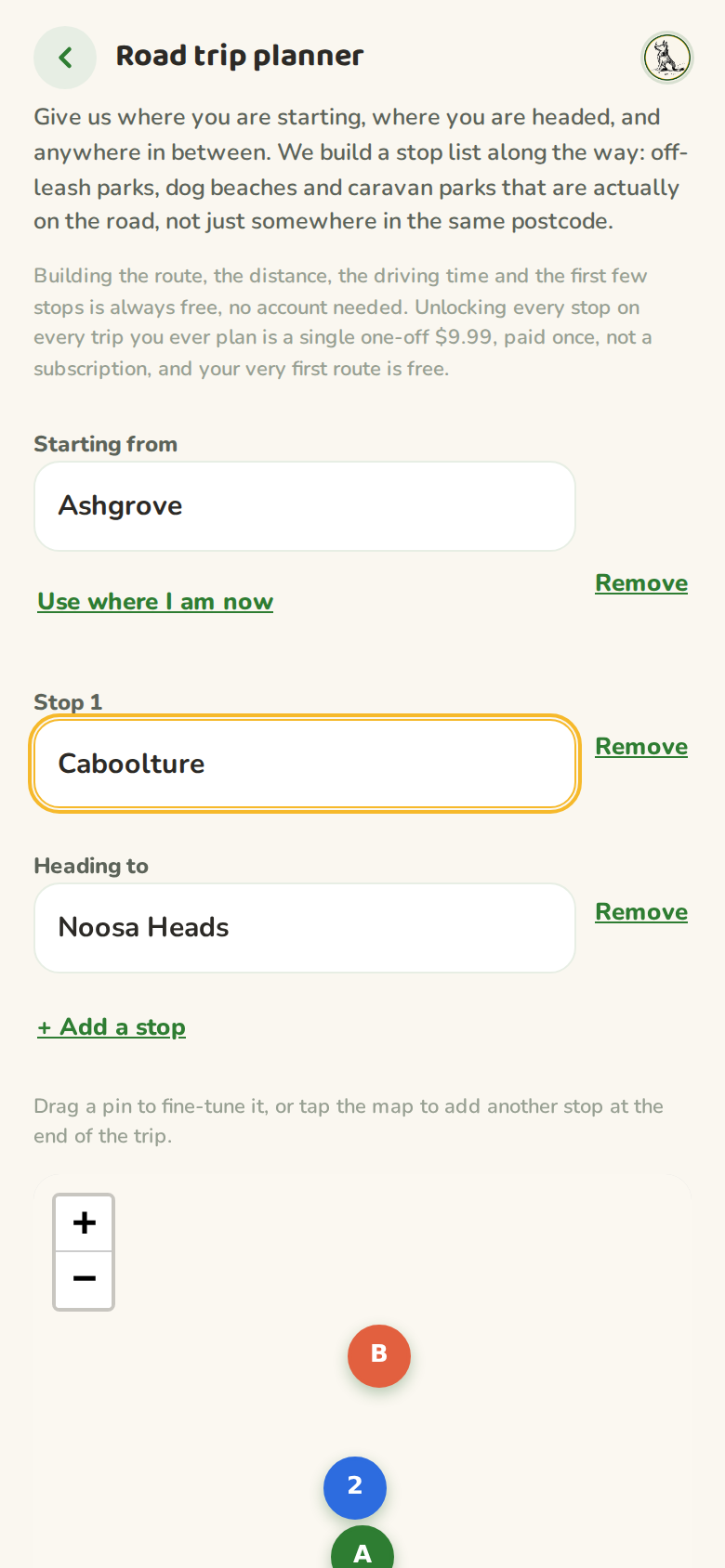
A road trip planner map with three resolved stops, a driving line between them, and a stop for a break interval set to every two hours
The map fills in as stops resolve

Open Road trip planner from Settings or your Billing page, and type in a starting point and a destination. Tap + Add a stop to put up to six more stops in between, an overnight, a lunch break, a second town on the way.

We ask OSRM for the real driving line through every stop in order, then check which off-leash parks, dog beaches, caravan parks, free camps and rest areas sit within about 5km of it, ordered by how close they are to the road. Free camps are offered as overnight stops along with the caravan parks; rest areas only ever come up as leg-stretch breaks, because the planner will never tell you to spend the night at one. Once every stop resolves to a point, a map appears showing the stops, the driving line, and a Stop for a break pacing control, every hour, every 1.5, 2, 3 or 4 hours, or a custom gap. Drag a pin to fine-tune exactly where a stop lands, or tap anywhere on the map to add a new stop at the end of the trip.

A route preview showing the total distance and driving time, the first three stops on the way, and a your first route is free banner
Building the list is free
A paid route marked paid, unlocked in full, with every stop showing and the map still live for editing
Unlocked, and still editable
A planned route summary with a warning card underneath saying the destination is inside Cradle Mountain-Lake St Clair National Park and dogs are not allowed in national parks
The national park warning, under the route summary

Tap Plan the route and you see the total distance, the driving time, and the first three stops on the way, no account and no payment needed to try it.

One more check before you commit: national parks. Dogs are banned in every Australian national park, not even allowed to sit in the car with the windows up, and the fines are real. So the planner checks every stop you entered against the boundaries of more than 750 national parks, and if one of Alex's stops lands inside one, a warning appears right under the route summary naming the park. Time to pick a spot outside the boundary, or line up a sitter or boarding kennel for that leg. No warning means none of your stops are inside one; state forests and most conservation reserves run on different rules and stay out of it.

Your first route is ever free. Every account gets one full unlock on the house, so you can see exactly what you are paying for before you spend anything. After that, a single one-off $9.99 unlocks the whole planner, not a subscription and not per route. Pay once and every route you ever plan is yours in full, saved under Billing so you can come back to them later.

Payment runs through Stripe. We never see or store your card details, and a route only ever unlocks after Stripe confirms the payment went through.

A paid route stays editable. Open it again and the map is live: drag a stop to move it, tap the map to add one, or use a pin's popup to take a stop off. Save changes writes it back to the same route, no extra charge. The start and finish are locked, changing either is really a new trip, so that means planning and paying for a fresh route.

A printed turn by turn directions sheet for the route, listing every stop in order with the distance and time between them
A plain sheet you can save as a PDF
The Billing page listing a purchased road trip with the amount paid and the date
Every purchase, in one place

Print it, or send it to Google Maps. On a paid route, Print directions builds a plain turn-by-turn sheet, every stop in order with the distance and time between them, and opens your browser's print dialog. Choose Save as PDF there for a copy on your phone, no separate download needed. Open in Google Maps hands the whole trip, every stop included, straight to Google Maps for live turn-by-turn.

Billing (Settings, then Billing) is where every purchase lives, whatever it was for, with what you paid and when. It is built to hold more than road trips as we add other paid extras later.

35. The wall: what your places have been up to

Photos and notes from the parks, beaches, caravan parks, kennels and vets you follow, all in one stream on your home screen.

The From your places wall with a Share a moment with the pack box on top and posts from a park and a dog beach
The wall, under the tile grid on home
The Share to the wall sheet with the chosen place, a Change place search, a text box and an Add a photo link
Posting from home, no digging required
  • From your places sits on your home screen, under the tile grid. It shows the last fortnight of posts from every place you follow, and it is not just parks. Follow a beach, a caravan park, a kennel or a vet and their posts land here too. Each post says which place it is from, tap the place name and you are on its page.
  • Give a post a paw. The paw button is the one-tap "good dog". Tap it again to take it back. The count shows on the post wherever it appears, home or the place's own page.
  • Post straight from home. Tap the Share a moment with the pack box at the top of the wall, pick the place, say the thing, attach a photo if you have one. Change place searches the whole catalogue, so the park you visited yesterday counts even if you do not follow it. The post goes on that place's page and on the wall of everyone who follows it. It is the same post either way, one place to write it, two places it shows.
  • Or from the place itself. Every place page has a Share a photo or a note button up top, next to Get directions. Tap it and you are in the comment box, no scrolling and no hunting.
  • Report what should not be there. Every post that is not yours has a Report button. One tap and it is with the Muttmates team to look at. Your own posts keep their Remove button, and pack admins can still take down posts at their park.

36. Common questions

Is Muttmates free?
Yes. Posting plans, packs, park info and everything else costs nothing, no trial that runs out, and no advertising in it. The one paid extra is the road trip planner: a one-off $9.99 unlocks every route you ever plan, after your first route which is free, entirely optional.
Does the road trip planner cost anything?
Building the itinerary is free: distance, driving time and the first three stops on the way, no account needed. Your first full route is free too, one per account. After that, a one-off $9.99 unlocks the whole planner, paid through Stripe, and every route you plan from then on is yours in full, forever. Not a subscription.
Do I have to download an app?
No. Muttmates runs in the browser. Open muttmates.au on your phone and it works. If you want it to sit on the home screen and open full screen like a normal app, your browser's share menu has an Add to Home Screen option that does exactly that.
Which dog parks are in it?
1,070 off-leash park areas and 59 dog beaches across every state and territory, taken from OpenStreetMap. You can search by suburb or park name, or let the phone sort them by how far away they are.
Does it know about free camps and rest areas?
Yes. About 640 free camps and 2,650 highway rest areas sit alongside the caravan parks, each badged so you can tell them apart in the list. The road trip planner offers free camps as overnight stops and rest areas as leg-stretch breaks, and it warns you if a stop you typed in lands inside a national park, where dogs are banned outright.
How do I know what a park has before I drive there?
Open the park's info page. It lists parking, drinking water, dog bag dispensers, bins, toilets, seating, shelter and night lighting, with a map and a get directions button. Regulars can suggest anything that is missing, and we check suggestions before they go live.
Does it track where I am?
No. Your location is only read at the moment you tap a button that asks for it, to sort parks by distance or to set your home suburb. Nothing runs in the background, and posting a plan shares the park and the time, never your position.
What can other dog owners see?
Your dog's photo, name, size, age, play styles and badges, and your first name. Not your surname, not your email, and not where you live.
What is a pack?
A private group for the people you already walk with, with its own plans. Nobody outside the pack can see it, or the plans posted to it. You join with a code from an admin. A walking group is the same thing wearing a different label, for groups that walk rather than meet at a park.
What is a meeting spot?
A place you add yourself, for groups that meet somewhere that is not a listed park, like the back corner of an oval. You create one while starting a pack or walking group, standing where you meet, and it is pinned there. It is private to you and the members of packs that meet at it, unless you choose to make it public.
What if nobody is at my park?
Post a plan for when you are heading down. That is the whole idea. The regulars who follow that park get a ping, and you usually find out you were not the only one thinking about it.
Can I look at a park without signing up?
Yes. Anyone can open a park and read what is on there today. You need an account to post a plan of your own or to say you are coming to someone else's.

Give it a go

An account takes about a minute, and your park is probably already in there.